·
SpaceDisk app icon

SpaceDisk

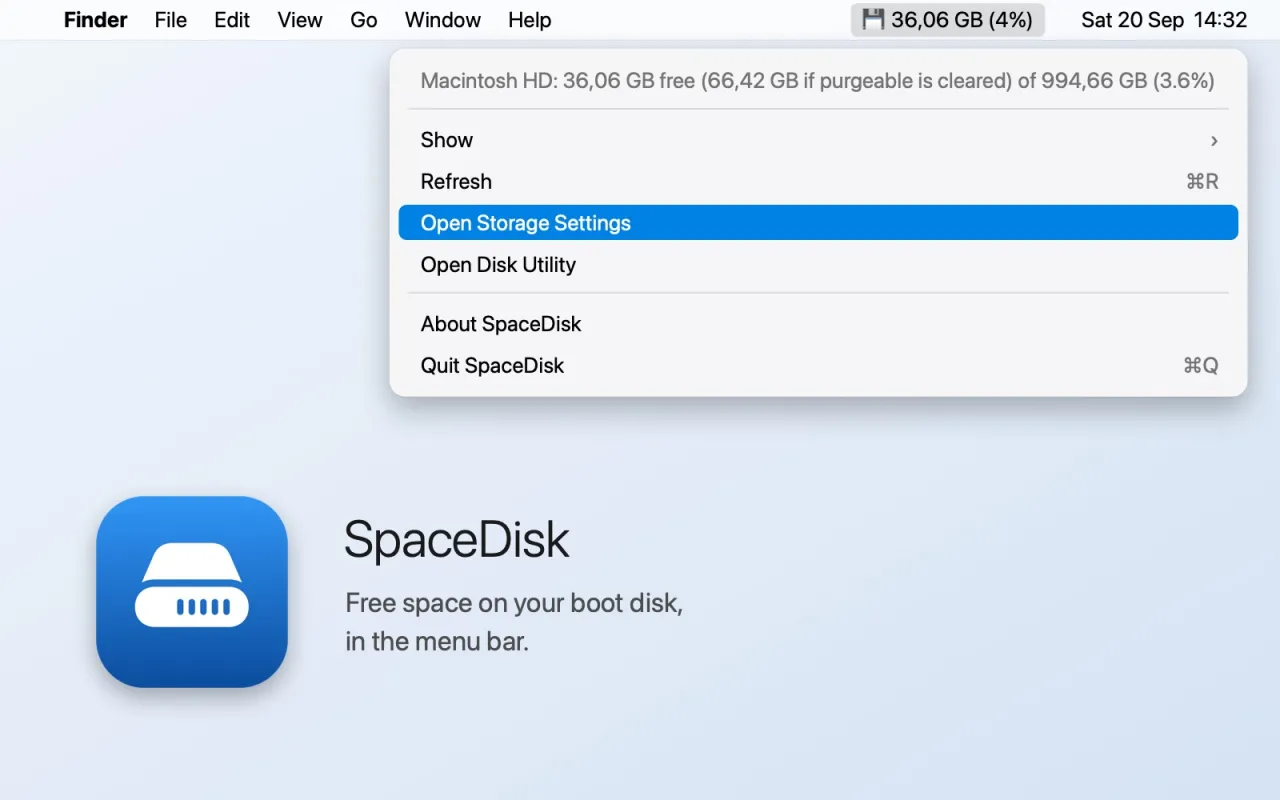
Free space on your boot disk, in the menu bar. One glance tells you how much room your Mac really has left — the same figure Disk Utility shows, not the optimistic one.

Size · percent · or both · warning colour when space runs low · one click to Storage settings and Disk Utility.

Coming soon to the Mac App Store. Free. Requires macOS 13 or later.

No accounts, no analytics, no network connection. The app never leaves your Mac.

SpaceDisk in the macOS menu bar showing 36 GB free (4%), with its menu open: the strict free figure next to the figure you get if purgeable space is cleared, Show, Refresh, Open Storage Settings, Open Disk Utility, About and Quit

What the app does

01

The honest figure

Finder counts purgeable space — local Time Machine snapshots, caches, offloaded iCloud files — as free, which is why it often says you have far more room than you do. SpaceDisk shows the strict figure in the menu bar, the same one Disk Utility and df report, and lists both figures in the menu so you can see the difference.

02

Size, percent or both

Choose what the menu bar shows: “36 GB”, “4%” or “36 GB (4%)”. The choice is remembered. The figure refreshes every 30 seconds and whenever you open the menu.

03

Warns before it hurts

The icon turns orange below 15% free and red below 5%, so you notice the problem before macOS starts complaining and apps start failing to save.

04

Fix it from the menu

Open the Storage pane of System Settings or Disk Utility straight from the menu. No Dock icon, no window — SpaceDisk lives in the menu bar and starts with your Mac if you add it to your login items.


Nothing leaves your Mac.

SpaceDisk reads the capacity of your boot disk through macOS and shows it. It has no accounts, no analytics, no ads, no tracking and makes no network connections. The only thing it stores is your display preference.